

How to Recover Data from a Corrupted External Hard Drive

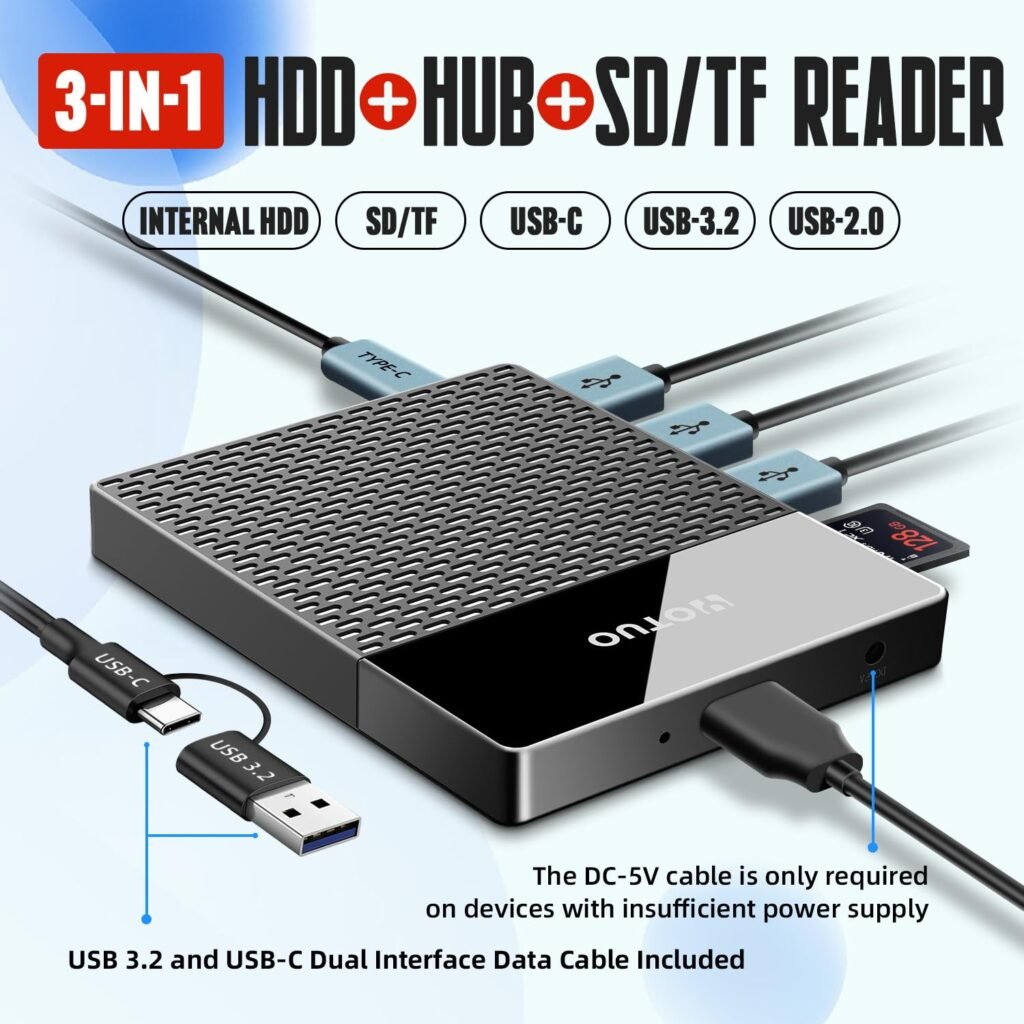
Dealing with a corrupted external hard drive can be stressful, especially when it contains irreplaceable data like photos, videos, documents, or work projects. Data corruption can happen due to hardware failure, accidental deletion, virus attacks, or improper ejection. Understanding the causes of corruption, recovery tools, advanced techniques, and preventive strategies is crucial for minimizing data loss. Yotuo external hard drives, provide reliable, high-performance storage solutions for Mac and Windows users, helping prevent data loss and supporting smooth backup routines.
Common Causes of External Hard Drive Corruption
Physical Damage
External hard drives are susceptible to physical trauma, including:
- Dropping or bumping the drive
- Exposure to water or humidity
- Extreme heat or cold
- Dust or magnetic interference
Symptoms of physical damage:
- Drive not recognized by your computer
- Clicking, grinding, or unusual noises
- Missing files or inaccessible partitions
In such cases, software-only recovery may not be sufficient. Professional services may be required to retrieve the data.
File System Errors
File system corruption can occur due to improper ejection, power loss, or software conflicts. Common signs include:
- “Drive not accessible” or “File system corrupted” errors
- Missing or invisible files
- Prompt to format the drive
File system errors are often recoverable with the right tools and careful handling.
Virus and Malware Infection
External drives are vulnerable to malware, ransomware, and other attacks that can corrupt files. Signs include:
- Files with unusual extensions or hidden files
- Slow performance of the drive
- Antivirus warnings during scans
Regular malware protection and drive scanning reduce the risk of data loss.
Step-by-Step Data Recovery Process
-
Stop Using the Drive Immediately
Continuing to write data can overwrite lost files, reducing recovery success. Safely eject the drive and avoid saving new data.
-
Diagnose the Problem
- Connect the drive to a different computer to check if the problem persists
- For minor software errors, use tools like Windows CHKDSK or macOS Disk Utility
-
Use Data Recovery Software
Reputable recovery tools include:
- Recuva – free, effective for accidental deletion
- EaseUS Data Recovery Wizard – advanced recovery, supports multiple file types
- Stellar Data Recovery – supports SSDs and HDDs, deep scan, and RAW file recovery
Pro Tip: Always create a disk image before attempting recovery, especially for severely corrupted drives.
-
Targeted File Recovery
Filter by file type (images, videos, documents) to speed up scanning and organize recovered files.
-
Seek Professional Services When Needed
For physical damage or advanced corruption:
- Use certified cleanroom data recovery labs
- Ensure staff are experienced with SSDs and HDDs
- Confirm confidentiality protocols for sensitive data
Advanced Recovery Techniques
Partition Recovery
If a partition is lost, software like EaseUS can rebuild the partition table and restore access.
Hex-Level Recovery
For severely corrupted drives, hex editors allow byte-level access to recover files manually.
Cloning the Drive
Creating a disk image prevents data loss during repeated recovery attempts. Tools include:
- Clonezilla
- Acronis True Image
RAID Recovery
For drives configured in RAID arrays, specialized software or services may be required to reconstruct the data.
Preventing External Hard Drive Corruption
Regular Backups
Backing up data is the most effective preventive measure. Yotuo external hard drives make backup routines simple:
- Time Machine for Mac users
- Windows File History or third-party backup software
- Scheduled incremental backups to avoid data loss
Safe Ejection Practices
Always use “Safely Remove Hardware” or “Eject” before disconnecting drives to prevent file system errors.
Protect Against Malware
- Keep antivirus software updated
- Avoid using drives on untrusted devices
- Regularly scan external drives
Proper Handling
- Avoid physical shocks, moisture, or extreme temperatures
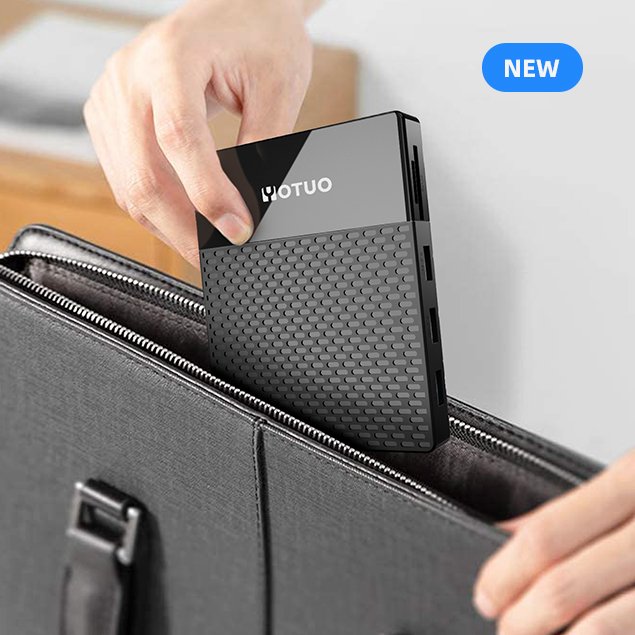
- Use protective cases for portability
- Keep drives away from strong magnetic sources
Choosing the Right External Hard Drive for Recovery and Backup
Yotuo external hard drives provide:
- Capacities from 320GB to 2TB
- SSD and HDD options for speed and bulk storage
- AES 256-bit encryption for data security
- High-speed USB-C and USB-A compatibility
- Durable designs for travel and field use
Investing in a reliable drive reduces future recovery risks and ensures quick backups for critical data.
Recommended Recovery Tools and Software
| Software | Platform | Features | Best Use |
| Recuva | Windows | Free, easy-to-use, recover deleted files | Minor file corruption, accidental deletion |
| EaseUS Data Recovery | Windows/macOS | Advanced recovery, partition recovery, file filtering | Moderate to severe corruption |
| Stellar Data Recovery | Windows/macOS | SSD & HDD support, RAW recovery, deep scan | Severe corruption, professional use |
| TestDisk | Windows/macOS/Linux | Open-source, partition repair, free | Advanced users, partition issues |
| R-Studio | Windows/macOS/Linux | Network recovery, RAID support | Complex corruption and enterprise use |
Real-World Data Recovery Examples
Example 1: Accidental Deletion
- Scenario: User deleted a 500GB project folder
- Solution: Use Recuva with deep scan
- Result: 98% of files recovered, including large video files
Example 2: File System Corruption
- Scenario: Drive not recognized after power outage
- Solution: Disk image created → EaseUS recovery
- Result: Recovered all partitions and 4TB of files without overwriting
Example 3: Physical Damage
- Scenario: Dropped HDD, clicking sounds
- Solution: Professional cleanroom recovery
- Result: 90% of files recovered, partially damaged video files repaired
Example 4: Virus-Induced Corruption
- Scenario: Malware encrypted external drive
- Solution: Deep scan + decryption using Stellar Data Recovery
- Result: Critical files recovered, drive reformatted and secured

Storage Recommendations for Gamers, Professionals, and Creators
| Usage Scenario | Recommended Drive | Capacity | Notes |
| Casual user | Yotuo HDD | 320GB–1TB | Affordable storage for documents and media |
| Creative professional | Yotuo SSD | 500TB–1TB | Fast access for large files, video/photo editing |
| Enterprise / Studio | Yotuo SSD/HDD hybrid | 1TB–2TB | Backup + active workflow storage |
Frequently Asked Questions
-
Can all corrupted drives be recovered?
- Minor software corruption is usually recoverable, while physical damage may require professional intervention.
-
How long does recovery take?
- Minutes for small files, hours or days for large or severely corrupted drives.
-
Are SSDs harder to recover than HDDs?
- SSDs with TRIM enabled are more challenging, but specialized tools and services can retrieve data.
-
Can I prevent corruption entirely?
- While complete prevention isn’t guaranteed, proper handling, regular backups, and antivirus protection greatly reduce risk.
-
Is it safe to use Yotuo drives for backup?
- Yes. Durable, high-speed, and secure, Yotuo external hard drives simplify automated backups.
-
Should I clone my drive before recovery?
- Always recommended to avoid overwriting lost data.
-
Can professional services recover data from physically damaged SSDs?
- Yes, though success rates vary based on the extent of damage.
-
How do I choose between SSD and HDD for backup?
- SSDs for speed and portability; HDDs for bulk storage and cost-effectiveness.
-
Can I recover encrypted files?
- Yes, if you have the encryption key or password; professional software supports encrypted drives.
-
Are Yotuo drives compatible with both Mac and Windows?
- Yes. Preformatted and cross-platform compatible models are available.
Recovering data from a corrupted external hard drive requires careful assessment, appropriate tools, and preventive practices. Understanding causes such as physical damage, file system errors, and malware can help you respond effectively. Using trusted recovery software or professional services increases success rates. Yotuo external hard drives offer durable, high-speed, and secure storage options that minimize future risks, support automated backups, and make recovery smoother if needed. By combining proper backup routines, careful handling, and the right external storage solution, users can protect valuable files and ensure continuity for personal, professional, or creative workflows.