

Can You Install Games on an External Hard Drive?

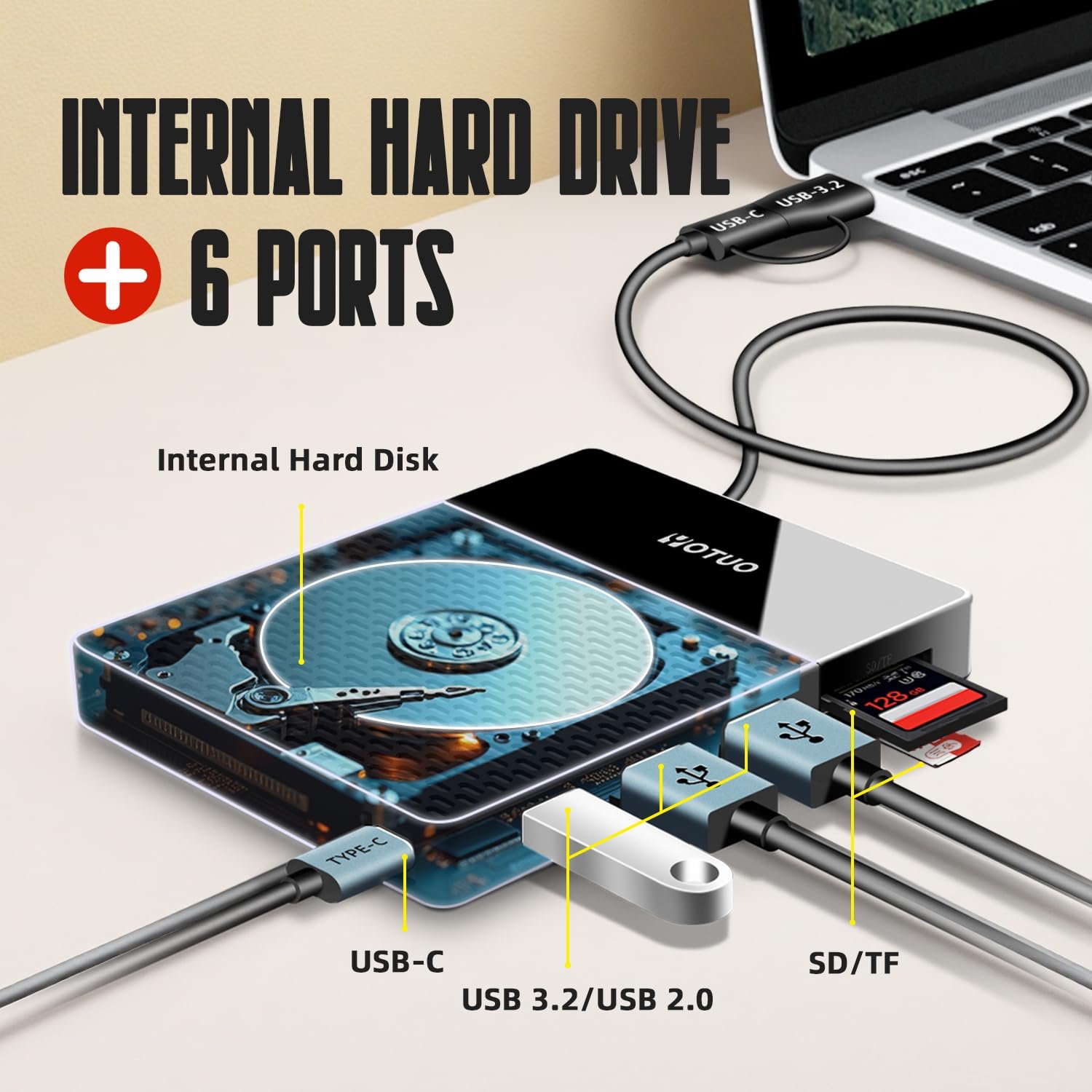
Installing games on an external hard drive has become a crucial solution for gamers who need additional storage without upgrading internal drives. Whether on PC, Mac, Xbox, or PlayStation, external drives allow you to expand your game library, reduce load times, and enjoy portability. High-quality drives like Yotuo deliver fast transfer speeds, durability, and reliability, making them ideal for both casual and professional gamers. This comprehensive guide dives deep into the technical aspects, setup procedures, comparisons, and recommendations to help you maximize your gaming experience.
Why Use an External Hard Drive for Games?
Benefits of Installing Games Externally
- Expanded Storage: Install more games without worrying about internal drive limitations.
- Portability: Move your game library between PCs or consoles with ease.
- Faster Backups and Transfers: External drives facilitate efficient data management.
- Reduced Internal Drive Wear: Preserves the lifespan of your main drive by offloading heavy game files.
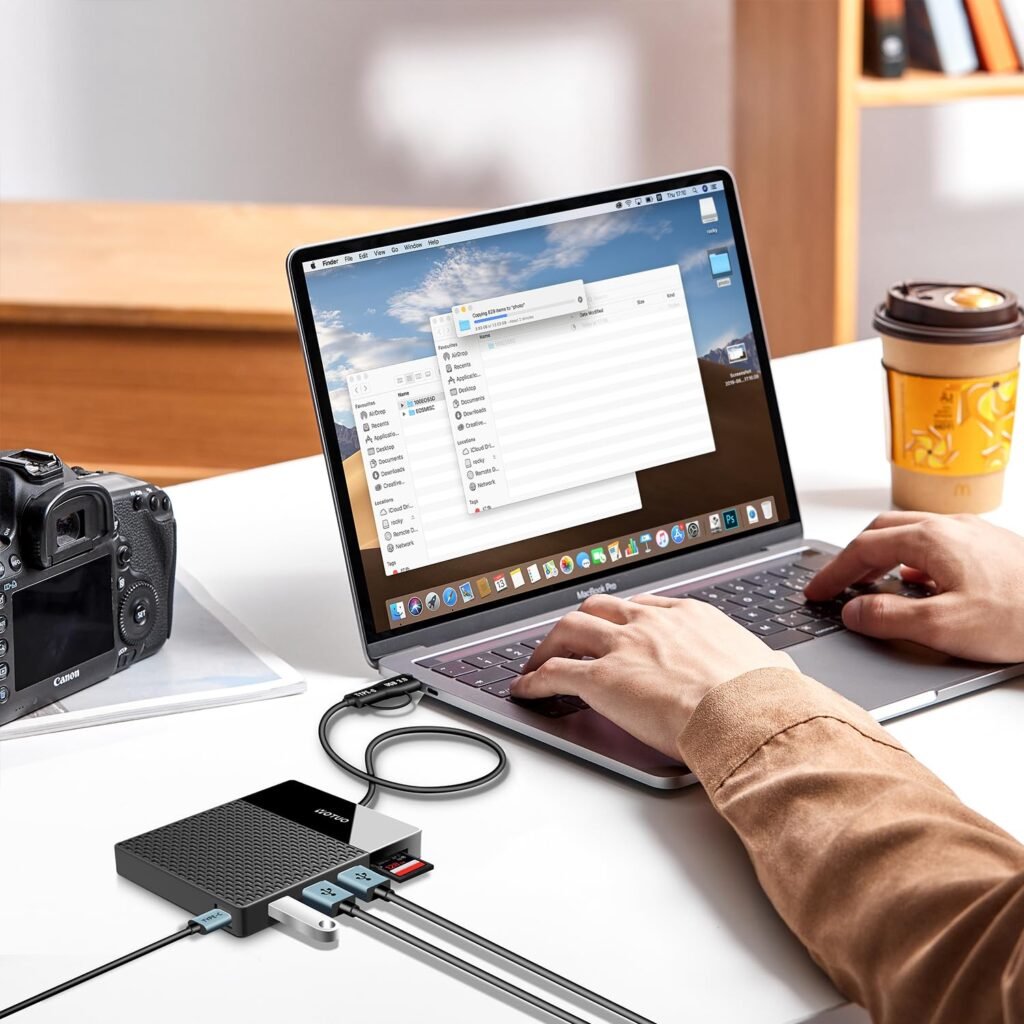
Technical Considerations for Game Installation
Interface and Speed
The interface of your external hard drive significantly impacts performance:
- USB 3.0/3.1 and USB-C: Offers fast data transfer, essential for large game files.
- Thunderbolt 3/4: High-end option for ultra-fast speed and low latency.
- Drive Type: SSDs outperform HDDs in speed and durability, minimizing load times and stuttering.
Capacity Planning
| Capacity | Recommended Use | Pros | Cons |
| 320GB–500GB | Small game collections | Affordable, compact | Limited storage for AAA games |
| 1TB–2TB | Moderate collections | Balanced capacity | Slightly bulkier |
| 4TB | Extensive collections | Store hundreds of games | Higher cost, larger size |
Tip: AAA titles can range from 50GB–200GB per game. A 2TB drive generally suits most gamers.
File System Compatibility
- Windows: NTFS recommended; exFAT works for cross-platform compatibility.
- Mac: HFS+ or exFAT required.
- Consoles: Xbox and PlayStation primarily support exFAT; always check your console’s specifications.
How to Install Games on an External Hard Drive
PC Installation Steps
- Connect the external hard drive using USB 3.0 or USB-C.
- Format the drive to NTFS (Windows) or exFAT (cross-platform).
- Open your game launcher (Steam, Epic Games, Origin).
- Set the install location to the external drive.
- Download and install games directly to the external storage.
Console Installation Steps
- Xbox: Go to Settings → System → Storage, select the external drive, and designate it as the default install location.
- PlayStation: Navigate to Settings → Storage → Extended Storage, format the drive as extended storage, and set it as the default game install path.
Troubleshooting Tips
- Game not recognizing drive: Ensure proper formatting and file system compatibility.
- Slow load times: Verify interface speed and consider upgrading to an SSD.
- Unexpected disconnections: Use high-quality cables and ensure stable power.
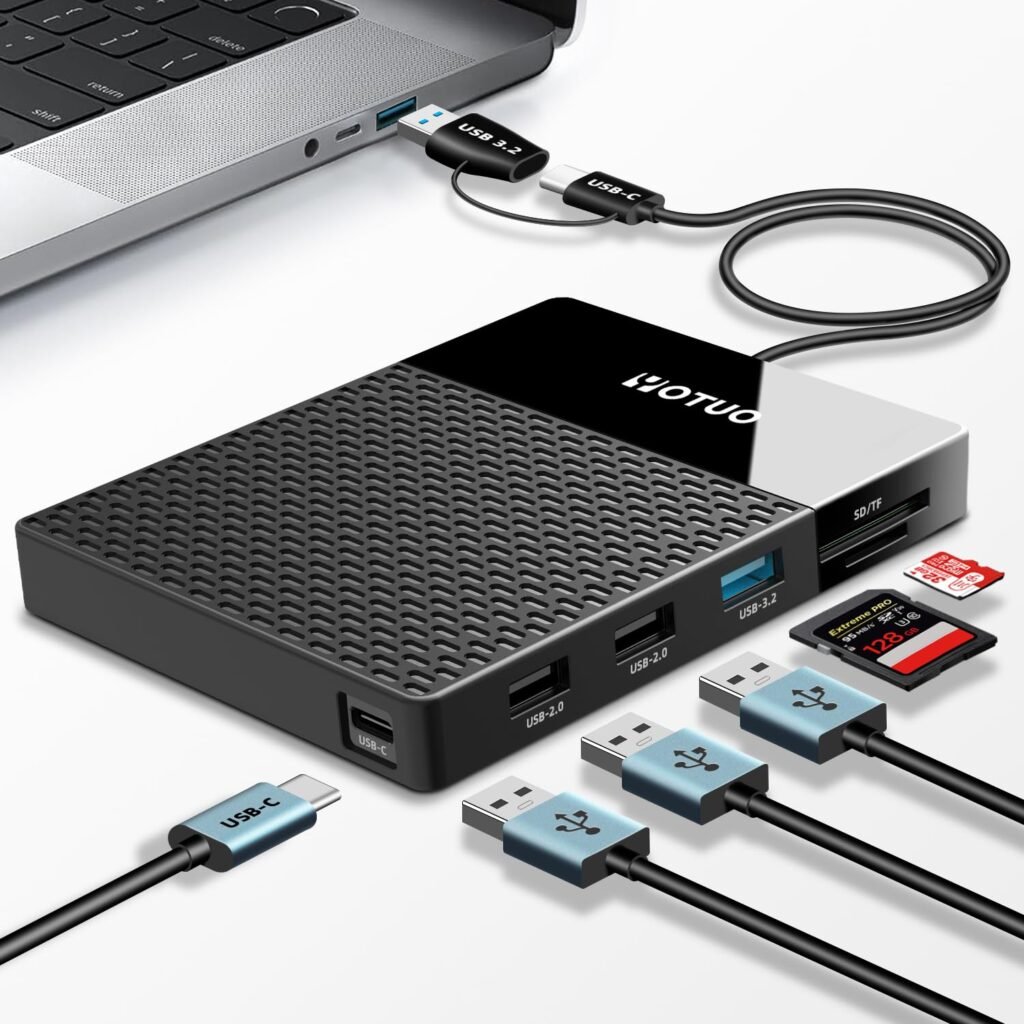
Comparing Drive Types for Gaming
SSD vs HDD
| Type | Speed | Durability | Pros | Cons |
| HDD | Moderate | Moving parts | Large capacity, affordable | Slower load times, fragile |
| SSD | High | No moving parts | Fast loading, portable, reliable | Higher cost, smaller capacity |
Recommendation: SSDs are ideal for reducing load times and providing smooth gameplay. HDDs are acceptable for bulk storage but may cause longer loading screens.
Portable vs Desktop External Hard Drives
| Type | Capacity | Pros | Cons | Ideal Use |
| Portable | 320GB–2TB | Lightweight, easy to carry | Smaller capacity | Travel, casual gaming |
| Desktop | 1TB–8TB | Large capacity, cost-effective per TB | Needs external power | Home gaming, extensive libraries |
Recommended External Hard Drives for Gaming
| Brand | Capacity | Interface | Notable Features |
| Yotuo | 320GB–2TB | USB 3.1/USB-C | Fast speed, durable, AES encryption |
| Seagate | 500GB–5TB | USB 3.0 | Reliable, auto-backup features |
| WD | 1TB–4TB | USB 3.0 | Password protection, media dashboard |
Recommendation: Yotuo external hard drives are perfect for gamers. With fast USB 3.1/USB-C speeds, durable designs, and capacities up to 4TB, Yotuo allows you to store extensive game libraries, enjoy rapid load times, and secure your data with AES encryption.
Optimizing Your Game Library
File Organization Tips
- Organize games by platform, genre, or publisher.
- Keep DLCs and updates in separate folders for easier management.
Backups and Maintenance
- Regularly backup game saves to another external drive or cloud storage.
- Avoid unplugging the drive while games are running to prevent corruption.
- Periodically check for errors and clean the drive.
Advanced Tips for Gamers
Enhancing Load Times
- Install games on SSD external drives for faster load times.
- Keep drives defragmented (for HDDs) or use TRIM for SSDs.
Managing Large Libraries
- Archive rarely played games to free up active storage.
- Use symbolic links or game launcher features to organize games across multiple drives.
Cross-Platform Usage
- Format drives to exFAT for compatibility across PC, Mac, and consoles.
- Use Yotuo drives for seamless cross-platform gaming experiences.
Real-Life Use Cases
- Traveling Gamers: Portable SSDs like Yotuo allow gaming on multiple devices while on the go.
- PC Enthusiasts: Offload games to external drives to reduce internal drive wear and maintain performance.
- Console Players: Expand PlayStation or Xbox storage without deleting existing games.
- Professional Streamers & Content Creators: Use external drives for quick game access and recording gameplay.
FAQ: Installing Games on an External Hard Drive
- Can all games be installed externally?
- Most modern titles support external installation, but always verify platform requirements.
- Will external drives slow my games?
- HDDs may introduce slight delays; SSDs provide near-internal performance.
- Can I move games back to my internal drive?
- Yes, most launchers support relocating game files.
- Do I need special cables for best performance?
- USB 3.0 or USB-C cables are recommended; Thunderbolt 3/4 offers maximum speed.
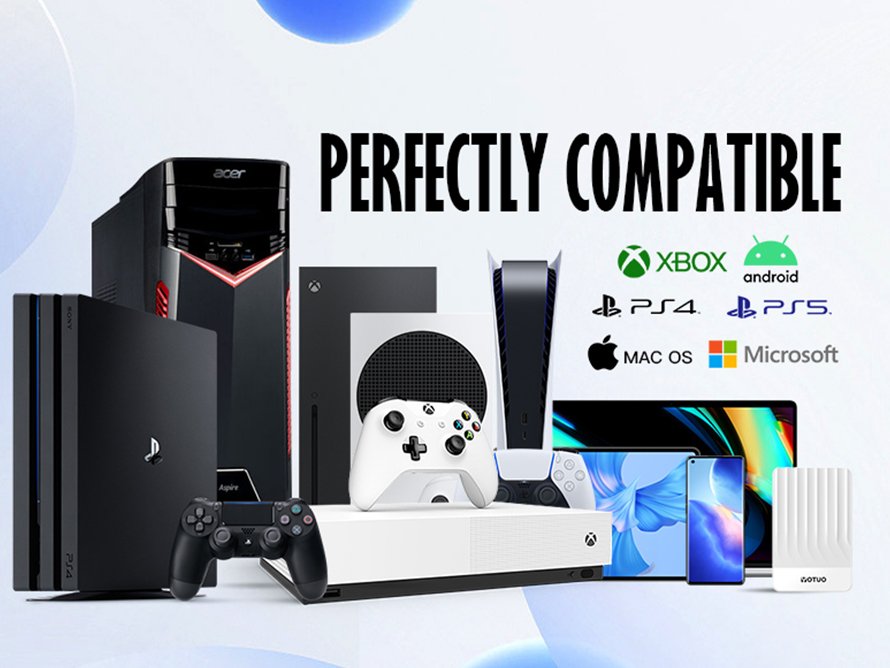
- Are Yotuo drives compatible with consoles?
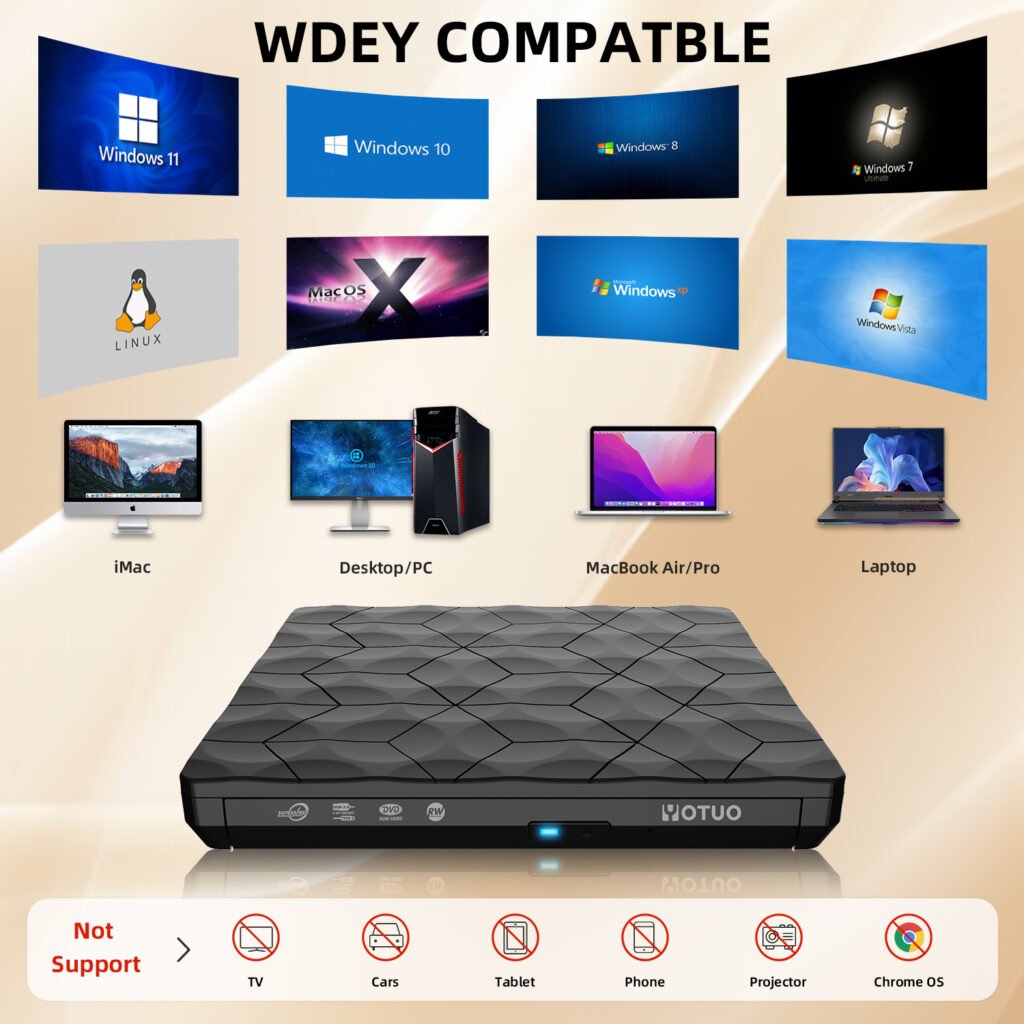
- Yes, Yotuo drives work with PC, Mac, Xbox, and PlayStation.
- What size drive is ideal for AAA gamers?
- 2TB–4TB is recommended for extensive AAA game libraries.
- Can I use multiple external drives simultaneously?
- Yes, but ensure sufficient power and interface speed.
- Do external drives require additional software for gaming?
- Not typically; formatting and proper interface support are sufficient.
- Can external drives store game mods or custom content?
- Yes, organize folders by mod type for easy access.
- How do I prevent accidental disconnection?
- Use high-quality cables, stable USB ports, and avoid unplugging while gaming.
Why Yotuo External Hard Drives Are Ideal for Gaming
- High Capacity: From 320GB to 2TB, ideal for all types of gamers.
- Fast USB 3.1/USB-C Interface: Reduces load times significantly.
- Durable and Portable: Shock-resistant, perfect for travel or LAN events.
- Cross-Platform Compatibility: PC, Mac, Xbox, PlayStation ready.
- Data Security: AES encryption protects game files and personal data.
Gamers seeking speed, reliability, and durability should consider Yotuo external hard drives. They combine performance, portability, and security, making them an excellent choice for both casual and professional gaming setups.