

How to Set Up an External Hard Drive for Mac Time Machine Backup

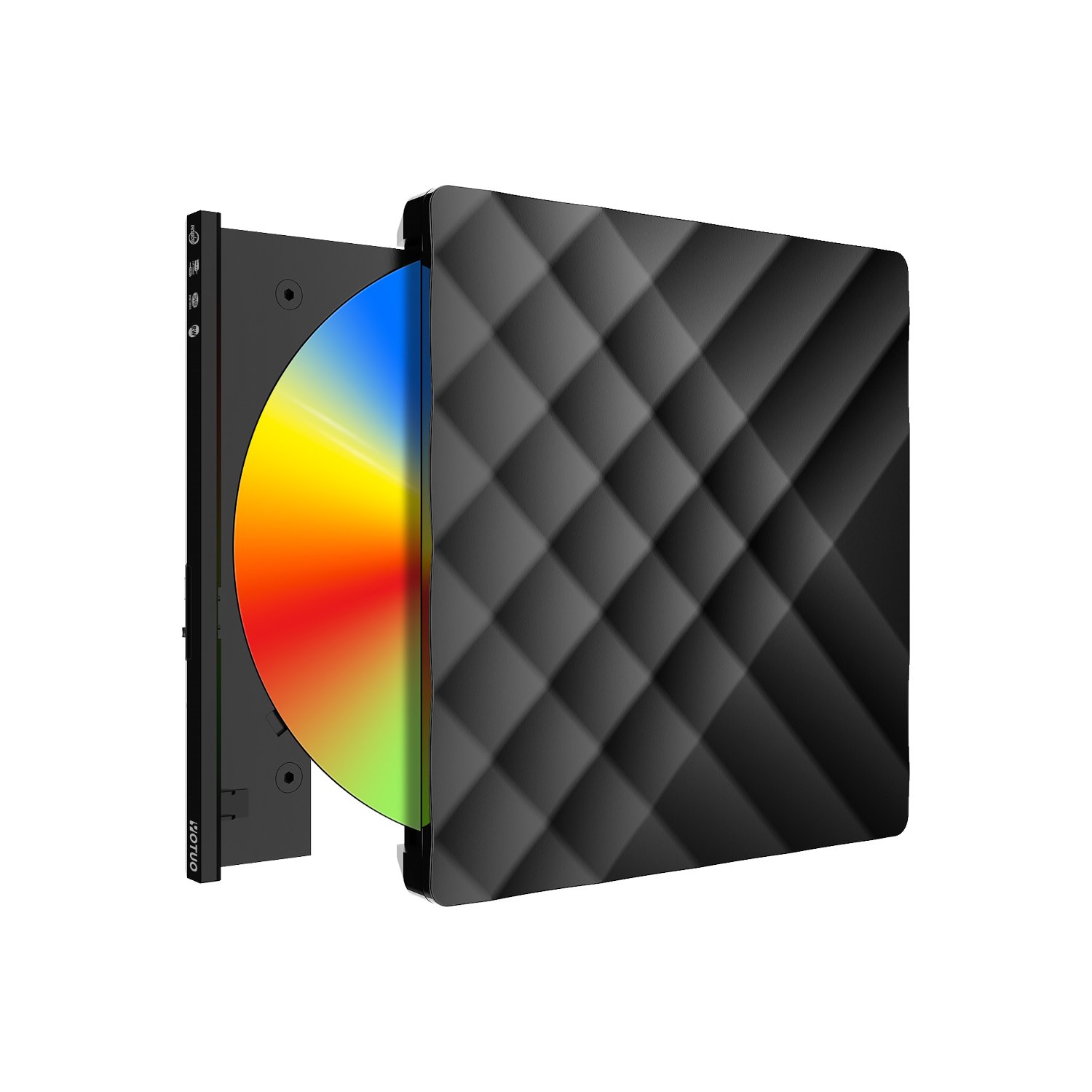
The quickest way to set up an external hard drive for Mac Time Machine backup is to connect the drive to your Mac, open System Settings → Time Machine, choose the drive as your backup disk, and let macOS automatically format it as APFS or HFS+. Once complete, Time Machine will continuously and automatically back up your files in the background, ensuring your documents, photos, and applications are safe.
Why Mac Users Need Time Machine and External Drives
Even though Apple offers iCloud storage, many Mac users still rely on external hard drives for Time Machine backups. Here’s why:
- Cost efficiency: A single 2TB external HDD costs less than a year of large iCloud subscription fees.
- Full system backup: Time Machine backs up apps, settings, and system files—not just documents.
- Offline protection: Your data is accessible without internet.
- Disaster recovery: Restore your Mac to an earlier state after crashes, malware, or accidental deletion.
- Long-term archiving: External drives store backups for years.
Step-by-Step Guide: Setting Up Time Machine with an External Drive
Step 1: Choose and Connect Your External Drive
Plug the external hard drive into your Mac using USB, USB-C, or Thunderbolt depending on the drive’s connection type.
Step 2: Open Disk Utility and Format the Drive
- Launch Disk Utility from Applications → Utilities.
- Select the external drive.
- Click Erase and format as APFS (best for SSDs and macOS High Sierra+) or Mac OS Extended (HFS+) for traditional HDDs.
- Name the drive (e.g., “Time Machine Backup”).
Step 3: Enable Time Machine
- Go to System Settings → General → Time Machine.
- Click Select Backup Disk.
- Choose the external drive you formatted.
- Check Back Up Automatically.
Step 4: Allow Initial Backup to Complete
The first backup may take several hours depending on drive size. Keep your Mac connected until it finishes.
Step 5: Schedule and Verify Backups
Time Machine runs hourly backups by default. You can customize schedules with third-party tools if needed.
Buying Guide: Best Drives for Mac Time Machine Backup
Storage Capacity
- 1TB–2TB: Good for basic users with documents and photos.
- 4TB–8TB: Best for families or users with many videos.
- 10TB+: Professionals with massive creative libraries.
Speed and Connectivity
- USB 3.0/3.2: Sufficient for HDDs.
- USB-C / Thunderbolt 3/4: Recommended for SSDs and faster transfers.
Portability vs Desktop Drives
- Portable drives: Best for students and home users.
- Desktop drives: Higher capacity, better for professionals.
Compatibility
- Ensure the drive supports APFS or HFS+ formatting.
- Drives pre-formatted as NTFS (Windows) need reformatting.
HDD vs SSD: Which Is Best for Mac Time Machine?
Both HDDs and SSDs work well, but they serve different needs.
| Feature | HDD (Hard Disk Drive) | SSD (Solid-State Drive) |
| Capacity | Up to 20TB, affordable | Up to 8TB, expensive |
| Speed | 100–160MB/s | 400–2000MB/s |
| Durability | Mechanical, prone to damage | Shock-resistant, long-lasting |
| Price per TB | $20–30 | $80–120 |
| Best For | Bulk backup, archives | Fast, frequent backups |
👉 Recommendation:
- Use HDDs if you want cost-effective, large backups.
- Use SSDs if you need fast, portable, and durable backups.
Technical Details: File Systems for Mac Backups
- APFS (Apple File System): Optimized for SSDs, used on macOS High Sierra and later.
- Mac OS Extended (HFS+): Still widely used for HDDs, fully compatible with Time Machine.
- exFAT: Useful for drives shared between Mac and Windows, but not recommended for Time Machine.
Best External Hard Drives for Mac Time Machine Backup (2025 Picks)
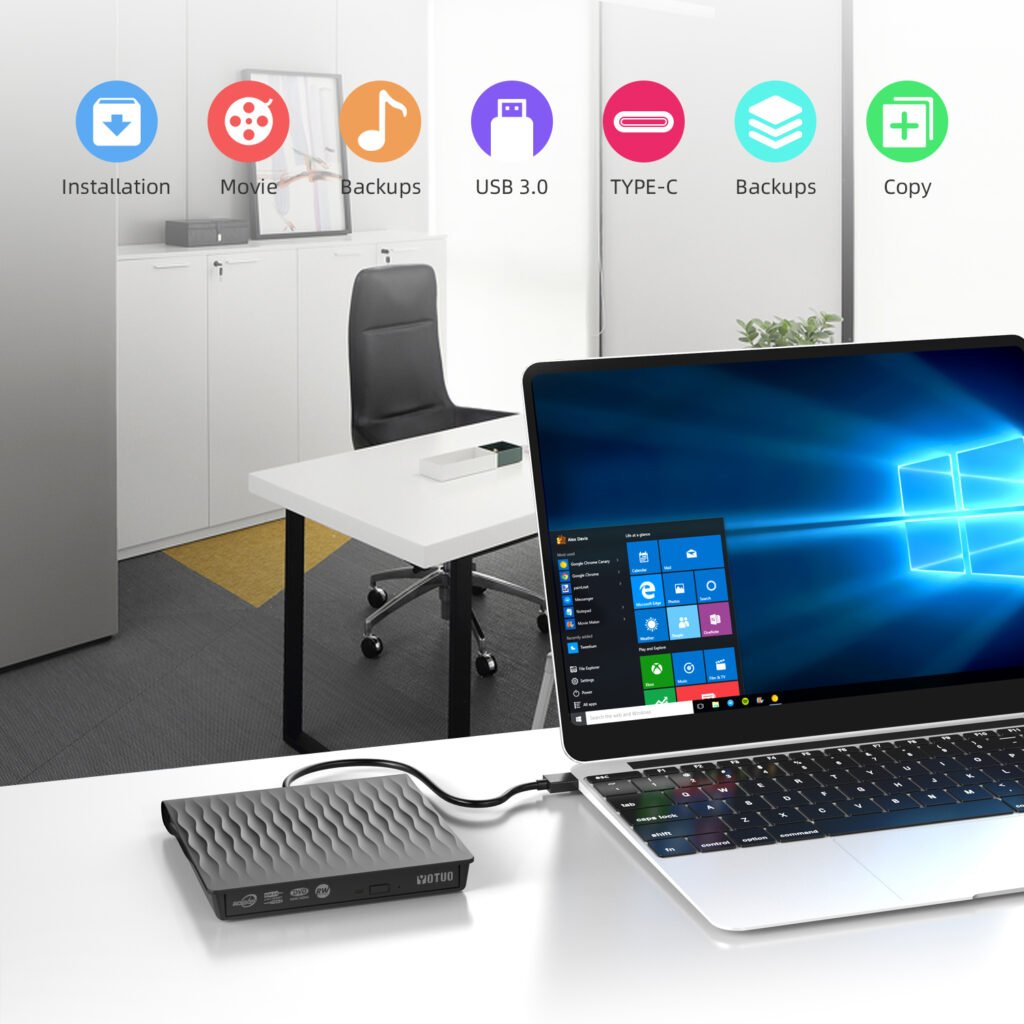
YOTUO SY-HDD01 Portable HDD
- Capacity: 320GB–2TB
- Features: Lightweight, shockproof, USB 3.0 connectivity.
- Why It’s Great: Affordable and perfect for everyday Mac users who need automatic backups.
WD My Passport for Mac
- Capacity: 1TB–5TB
- Features: Pre-formatted for macOS, USB-C cable, Time Machine ready.
- Why It’s Great: Plug-and-play solution for MacBook owners.
Seagate Backup Plus Hub
- Capacity: 4TB–16TB
- Features: Desktop HDD with USB hub functionality.
- Why It’s Great: Excellent for professionals with large data libraries.
Samsung T7 Portable SSD
- Capacity: 320GB–2TB
- Features: USB-C, blazing-fast 1050MB/s transfers.
- Why It’s Great: Perfect for speed-focused students and creatives.
LaCie Rugged SSD Pro
- Capacity: 1TB–4TB
- Features: Thunderbolt 3, rugged casing, water-resistant.
- Why It’s Great: Ideal for fieldwork and traveling Mac users.
Comparison Table: Best Mac Backup Drives in 2025
| Brand/Model | Type | Capacity Options | Speed | Best For |
| YOTUO SY-HDD01 | HDD | 320GB–2TB | 120MB/s | Everyday student/home use |
| WD My Passport | HDD | 1TB–5TB | 130MB/s | MacBook users, Time Machine |
| Seagate Backup Plus | HDD | 4TB–16TB | 140MB/s | Professional backups |
| Samsung T7 | SSD | 500GB–2TB | 1050MB/s | Creatives, fast backups |
| LaCie Rugged SSD Pro | SSD | 1TB–4TB | 2000MB/s | Travelers, field professionals |
Common Problems and Troubleshooting
- Drive Not Recognized: Reformat to APFS/HFS+ in Disk Utility.
- Backups Too Slow: Switch from HDD to SSD, or use faster connections.
- Drive Full: Time Machine deletes oldest backups automatically; consider upgrading to a larger drive.
- Corrupted Backups: Reformat and restart Time Machine, ensure power stability.
FAQs: Time Machine with External Drives
Q: Can I use the same drive for both Mac and Windows?
Yes, but not for Time Machine. For cross-platform use, format in exFAT, but keep a separate partition for Mac backups.
Q: How often does Time Machine back up?
Hourly by default, but you can customize schedules with third-party tools.
Q: Is iCloud better than Time Machine?
iCloud is convenient for documents, but Time Machine backs up your entire system including apps and settings.
Q: How long will an external drive last for Time Machine?
HDDs typically last 3–5 years, SSDs 5–10 years.
Q: Do I need more than one backup drive?
Yes, for critical data it’s best to maintain two backups—one on-site, one off-site.
Final Recommendation
The best way to set up an external hard drive for Mac Time Machine backup is to select a drive that matches your needs:
- For students and home users: YOTUO SY-HDD01 provides affordable, portable backups.
- For MacBook users: WD My Passport for Mac is pre-formatted and ready to go.
- For professionals: Seagate Backup Plus Hub offers massive capacity.
- For creatives: Samsung T7 SSD ensures fast, reliable performance.
- For travelers: LaCie Rugged SSD Pro protects data in challenging environments.
In 2025, with rising data demands and risks, the smartest backup strategy is to combine Time Machine with a reliable external drive. This ensures your Mac is always protected, your files recoverable, and your peace of mind intact.
There may be noticeably a bundle to learn about this. I assume you made certain nice points in options also.