

External Hard Drive Not Showing Up? Here’s How to Fix It

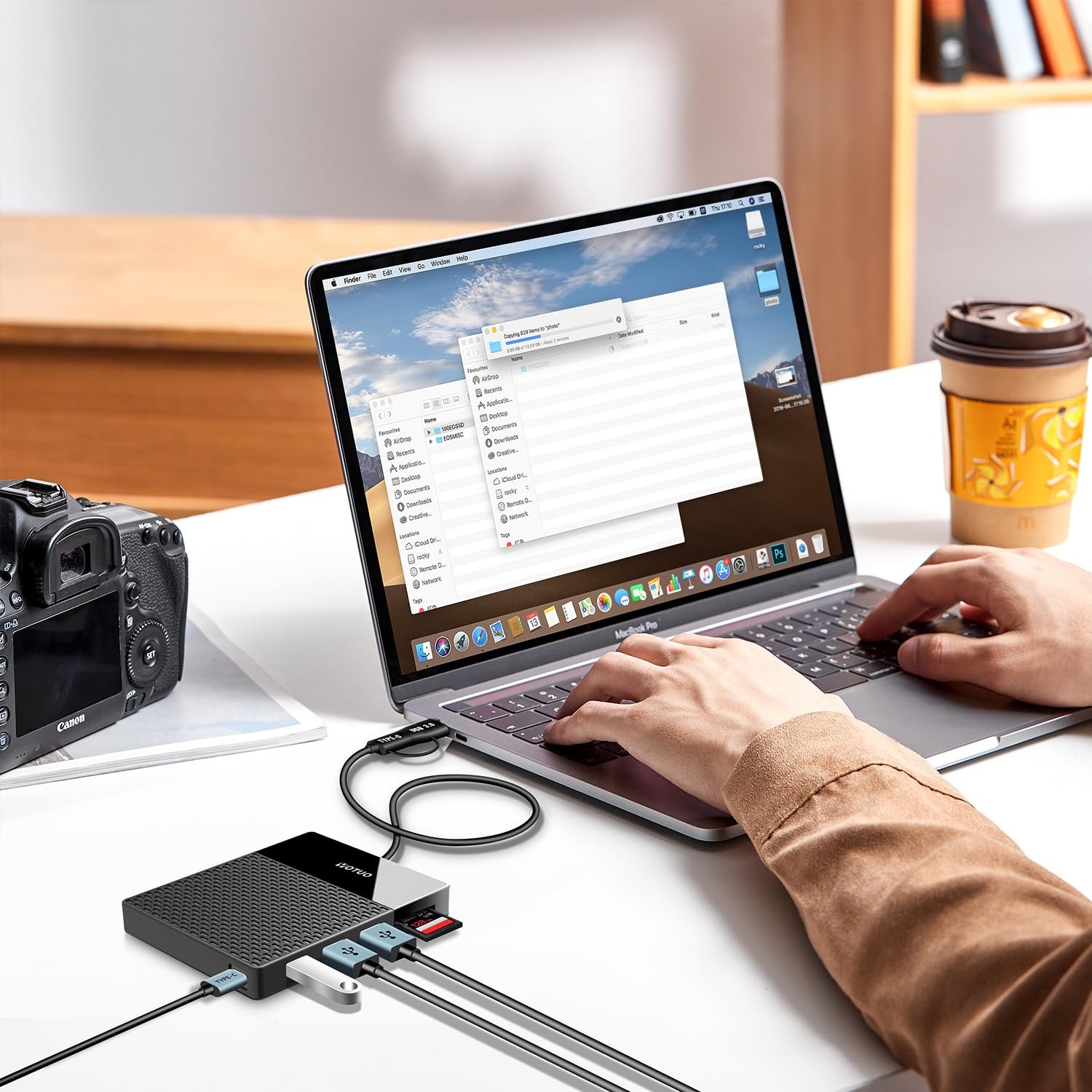
If your external hard drive isn’t showing up on your computer, it can be frustrating, especially if you have important files stored on it. External drives sometimes fail to appear due to connection issues, driver problems, or formatting errors. Luckily, there are several ways to troubleshoot and fix the issue without losing your data. From checking cables to updating drivers, assigning drive letters, and adjusting system settings, you can usually restore access to your external drive quickly. Understanding why this happens and knowing how to choose a reliable external hard drive can prevent future problems.
Why Your External Hard Drive Might Not Be Showing Up
There are multiple reasons why an external hard drive might fail to appear on your PC or Mac:
-
Faulty Connection or USB Port
Sometimes the issue is as simple as a loose cable, damaged USB port, or improper connection. Testing different ports and cables can quickly determine if the problem is hardware-related.
-
Drive Not Initialized or Recognized
New drives may not be initialized or properly formatted, causing them to not show up in File Explorer or Disk Utility.
-
Driver Issues
Missing, outdated, or corrupted drivers can prevent your system from recognizing an external drive. This is a common issue on Windows machines.
-
Drive Letter Conflicts (Windows)
If the drive letter assigned conflicts with an existing drive, it may not appear in File Explorer, even though the drive is detected by the system.
-
File System or Formatting Errors
Incompatible or corrupted file systems (NTFS, exFAT, or HFS+) can cause the external hard drive to not mount properly, especially when switching between Mac and Windows.
-
Power Supply Issues
Some high-capacity drives require more power than a single USB port provides. Using a powered USB hub or connecting directly to the computer can solve the problem.
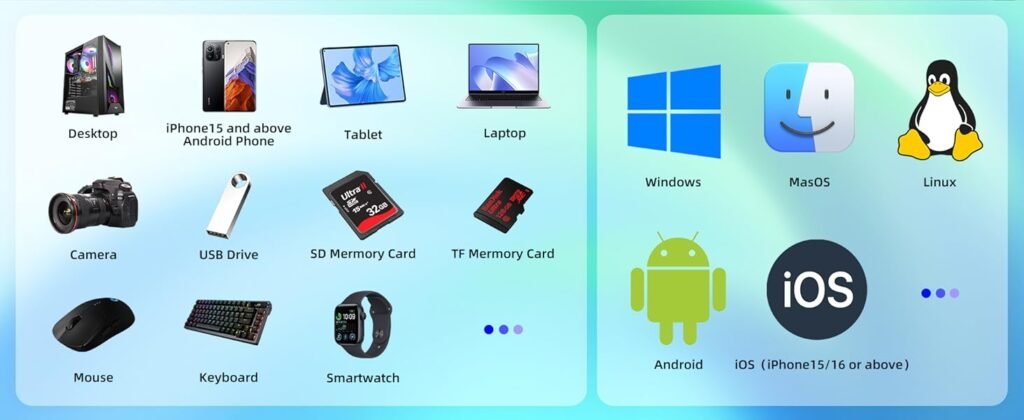
Step-by-Step Guide to Fix an External Hard Drive Not Showing Up
-
Check the USB Connection
- Connect the drive to a different USB port.
- Use a different USB cable to rule out faulty wiring.
- Test the drive on another computer to determine whether the issue is with the drive itself or your system.
-
Update or Reinstall Drivers (Windows)
- Open Device Manager, locate the external drive under “Disk Drives.”
- Right-click → Update driver or Uninstall device and reconnect.
- Restart your computer to allow Windows to reinstall the driver automatically.
-
Assign or Change Drive Letter (Windows)
- Open Disk Management, locate your external drive.
- Right-click → Change Drive Letter and Paths…
- Assign a new, unique drive letter to avoid conflicts.
-
Initialize or Format the Drive
⚠️ Warning: Formatting will erase all data.
- Windows: Right-click the drive in Disk Management → Initialize Disk → Choose GPT or MBR.
- Mac: Use Disk Utility → Select the drive → Erase and choose a compatible format like exFAT for cross-platform use.
-
Run Disk Check or Repair Tools
- Windows: chkdsk X: /f (replace X with the drive letter)
- Mac: Use First Aid in Disk Utility to repair the drive.
-
Check for Hidden Devices
- In Device Manager → View → Show hidden devices
- Look for grayed-out drives, right-click → Uninstall, then reconnect the drive.
Extended Buying Guide for External Hard Drives
Choosing the right external hard drive can prevent future issues and improve your storage experience.
-
Capacity
- Casual users: 1TB–2TB is usually sufficient.
- Power users & gamers: 4TB–8TB or more for large games, media libraries, and backups.
-
Speed & Interface
- USB 3.0 / 3.2: Fast data transfer for most users.
- USB-C / Thunderbolt 3/4: Ideal for professional editors, gamers, and large file transfers.
-
Compatibility
- Make sure the drive works with Windows, Mac, and Linux.
- Drives formatted for one system may require reformatting for another.
-
Durability & Design
- Shock-resistant, drop-proof, and water-resistant designs prevent data loss.
- Portable drives are convenient for travel.
-
Brand & Warranty
- Trusted brands like Yotuo offer reliable performance, stable connectivity, and excellent customer support.
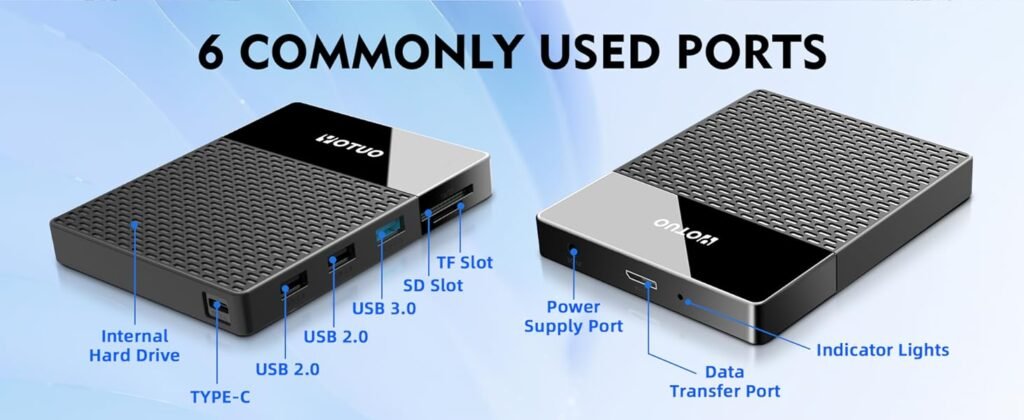
Technical Details: How External Drives Work
-
HDD vs SSD
- HDD: Uses spinning magnetic disks and a mechanical read/write head. Pros: high capacity, low cost. Cons: slower, vulnerable to physical shock.
- SSD: Uses flash memory chips with no moving parts. Pros: fast, durable, lightweight. Cons: higher price per GB, smaller capacity.
-
File Systems
- NTFS: Windows-native, large file support.
- FAT32: Compatible across devices but limited to 4GB per file.
- exFAT: Works on Windows and Mac, no large file limits.
-
Drivers and OS Recognition
- Operating systems use drivers to communicate with external drives.
- Outdated or missing drivers can prevent recognition.
-
Power and Stability
- Some large HDDs require extra power; SSDs typically consume less energy.
- Using a powered USB hub or connecting directly can improve stability.
HDD vs SSD Comparison Table
| Feature | External HDD | External SSD | Recommended Use |
| Speed | 100–160 MB/s | 400–7000 MB/s | HDD: backups / SSD: games, active work |
| Durability | Moving parts, fragile | Shock-resistant, no moving parts | Travel / portable usage |
| Price per GB | Low | High | Budget vs premium |
| Capacity | Up to 20TB | 320GB–4TB | Large file storage vs speed priority |
| Recommended Brand Example | Yotuo External HDD | Yotuo External SSD | Reliable, high-speed storage |
Yotuo External Hard Drives Recommendation
For those who need reliable external storage, Yotuo external hard drives are a top choice:
- ✅ High-capacity options: 1TB–8TB
- ✅ USB 3.0 connectivity: Faster data transfer
- ✅ Durable design: Shock-resistant for travel
- ✅ Affordable pricing: Excellent value without sacrificing quality
Using a trusted brand like Yotuo reduces the likelihood of connection and drive failure issues, keeping your files safe.
👉 Check Yotuo external hard drives here: yotuo-us.com
Advanced Troubleshooting Tips
- Command Line Fixes:
- Windows: diskpart for partition and volume management
- Mac: diskutil for detailed disk operations
- SMART Status Check: Evaluate drive health using software tools.
- Firmware Updates: Some drives require firmware updates to function correctly.
- Avoid USB Hubs for Large Drives: Connect directly to the PC for stable power.
Frequently Asked Questions (FAQ)
- Why is my external hard drive not recognized by Windows 10/11?
Usually due to driver issues, hidden devices, or drive letter conflicts. Updating drivers or assigning a new drive letter often solves the problem.
- Can I use a drive formatted for Mac on Windows?
Yes, if it’s formatted as exFAT, which is compatible across platforms.
- What is the safest way to eject an external hard drive?
Use the “Safely Remove Hardware” option to prevent data corruption.
- Will Yotuo external hard drives reduce connection issues?
Yes, Yotuo drives are known for stable connectivity and durable build, minimizing recognition problems.
- Can I use both an SSD and HDD together?
Absolutely. Many users use an SSD for active files and games, and an HDD for bulk storage and backups.
✅ Conclusion
If your external hard drive isn’t showing up, most issues can be fixed by:
- Checking connections
- Updating drivers
- Assigning a drive letter
- Repairing or reformatting the drive
To avoid recurring problems, investing in a high-quality external hard drive like Yotuo is wise. With durable construction, high-speed USB 3.0 connectivity, and reliable performance, Yotuo external hard drives are perfect for gamers, content creators, and professionals who rely on external storage every day.
I like this weblog its a master peace ! Glad I discovered this on google .