

How to Test the Speed of Your External Hard Drive

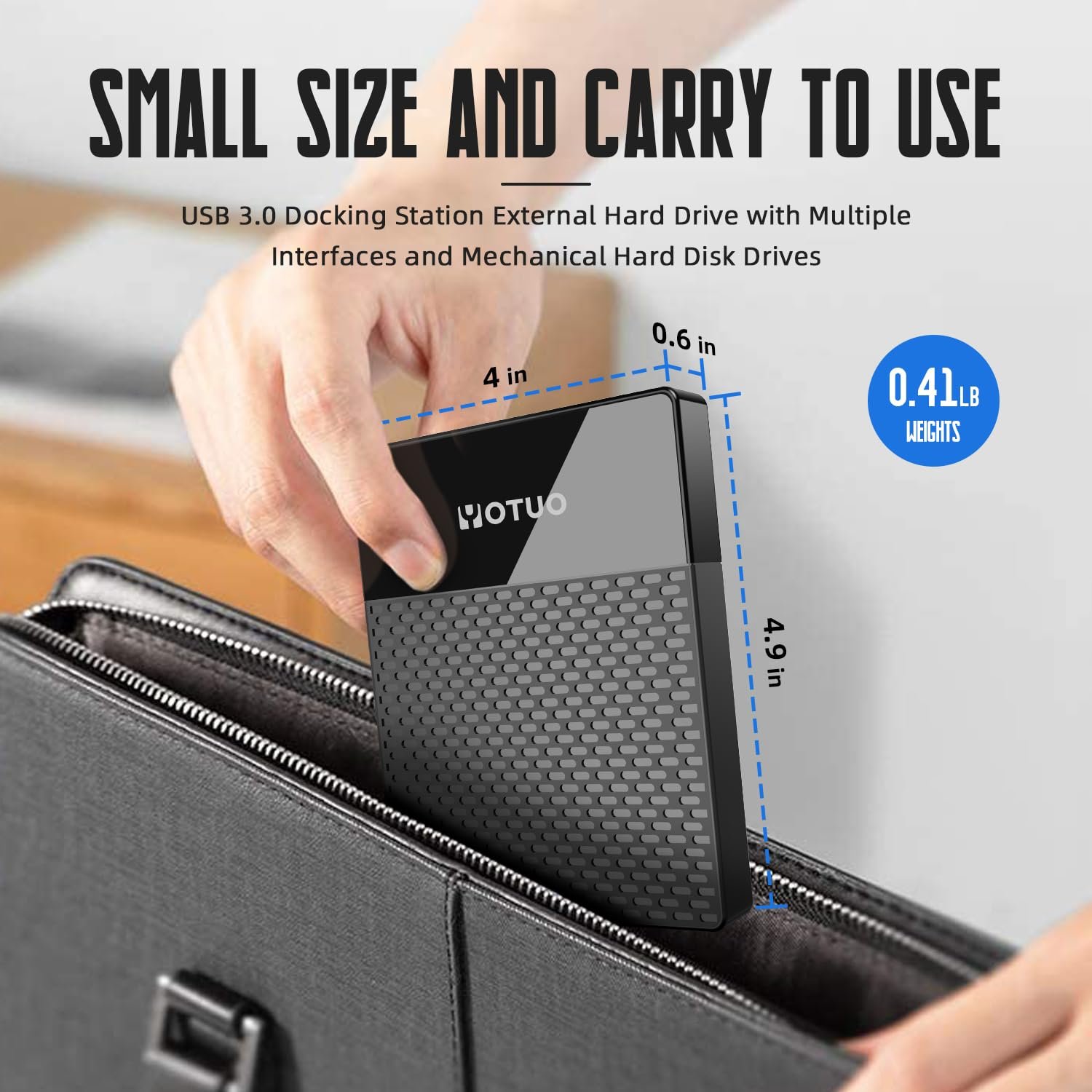
In today’s fast-paced digital world, an external hard drive is no longer just a backup tool—it’s a critical component for students, professionals, and content creators alike. Whether you’re storing research papers, editing high-resolution videos, or maintaining a large multimedia library, knowing your drive’s speed is essential. Testing the speed of your external hard drive helps ensure smooth file transfers, prevents workflow bottlenecks, and optimizes overall storage performance.
In this comprehensive guide, we’ll explore why speed matters, how to test it accurately, technical details of drives, purchasing considerations, comparisons between SSDs and HDDs, and practical recommendations. We’ll also highlight Yotuo external hard drives, which combine speed, reliability, and durability for everyday use.
Why Testing Your External Hard Drive Speed Matters
Many users underestimate the importance of speed when it comes to external storage. A slow drive can cause frustration, especially when working with large files or multiple applications. Here’s why you should regularly test your external hard drive:
- Workflow Efficiency: Slow drives increase load times, file transfer durations, and rendering times.
- Data Integrity: Performance drops can indicate potential hardware failures before catastrophic data loss occurs.
- Capacity Management: Drives that are nearly full may perform slower, and testing helps monitor performance under load.
- Comparison Shopping: Speed testing allows you to evaluate different models objectively and choose the best value for your needs.
For students, creative professionals, or anyone relying on consistent performance, Yotuo external hard drives offer high-speed SSDs and robust desktop HDDs that meet these needs. Explore their offerings at yotuo-us.com.
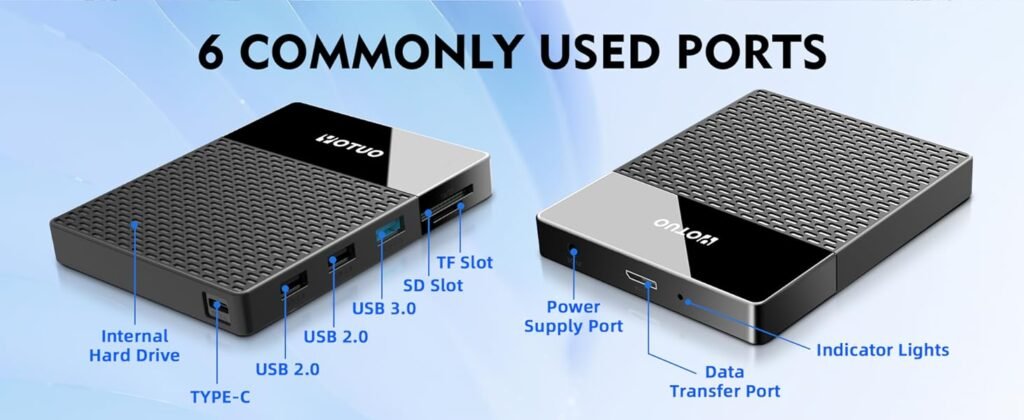
Types of External Hard Drives
External hard drives come in multiple forms, each with different performance characteristics. Choosing the right type is critical when considering speed and reliability.
-
Portable External Hard Drives
- Portability: Lightweight, easy to carry in a backpack.
- Power Source: Typically powered via USB, no external adapter required.
- Capacity: Usually 320GB–4TB.
- Performance: SSD variants offer high speed, while HDD variants are slower but more affordable.
-
Desktop External Hard Drives
- Form Factor: Larger, requires external power.
- Capacity: 4TB–20TB or higher, suitable for heavy storage needs.
- Performance: High-capacity HDDs provide cost-effective storage but generally slower than SSDs.
Technical Details: Understanding Drive Speed
To understand external hard drive performance, you need to know two critical metrics:
Read Speed
- The rate at which data can be retrieved from the drive.
- Important for opening files, loading projects, and running applications directly from the drive.
Write Speed
- The rate at which data can be saved to the drive.
- Critical for transferring files, recording videos, or creating backups.
Factors That Affect Speed
- Drive Type: SSDs (Solid State Drives) outperform HDDs (Hard Disk Drives) because they lack mechanical parts.
- Interface: USB 3.0, USB-C, and Thunderbolt 3/4 offer varying transfer rates.
- File Size: Many small files transfer slower than a single large file.
- Drive Health: Fragmentation, age, and usage patterns can affect speed.
- System Compatibility: File system (NTFS, exFAT, HFS+) affects speed across Windows and Mac.
How to Test External Hard Drive Speed
-
Operating System Tools
Windows
- File Transfer Test: Transfer a large file and measure duration.
- Task Manager: Monitor disk activity under Performance → Disk.
Mac
- Disk Utility: Provides basic performance info.
- Terminal Commands: Measure read/write speed for different file sizes.
-
Third-Party Benchmarking Software
- CrystalDiskMark: Windows tool for sequential and random read/write tests.
- Blackmagic Disk Speed Test: Mac favorite for video editing workloads.
- ATTO Disk Benchmark: Measures drive performance across block sizes.
-
Real-World File Transfer Tests
- Copy multiple small files (e.g., documents, images).
- Transfer large video files or datasets.
- Simulate workload during video editing or multitasking.
These practical tests often reveal differences between theoretical specifications and actual real-world performance. SSDs maintain consistent speeds across file types, while HDDs often slow down with many small files.
SSD vs HDD: Performance Comparison
| Feature | SSD | HDD |
| Read/Write Speed | Very high (up to 3500 MB/s) | Moderate (100–250 MB/s) |
| Durability | Shock-resistant, no moving parts | Susceptible to drops and wear |
| Capacity | 250GB–4TB | 1TB–20TB+ |
| Cost per GB | Higher | Lower |
| Ideal Use | Video editing, active projects | Backup, long-term storage |
Yotuo portable SSDs provide high-speed performance ideal for students and professionals on the go, while Yotuo desktop HDDs offer large capacity for backups and long-term storage.
Step-by-Step Guide to Testing Drive Speed
- Choose a Benchmark Tool
Pick a reliable tool like CrystalDiskMark or Blackmagic Disk Speed Test. - Connect Drive Properly
Use USB-C or Thunderbolt for SSDs, USB 3.0 for HDDs. Avoid hubs that limit speed. - Run Sequential Tests
Measure performance when reading/writing large contiguous files. - Run Random Tests
Assess speed with small, scattered files to simulate real-world use. - Compare Against Manufacturer Specs
If performance is below expectations, check for cable issues, overheating, or drive health problems.
Optimizing External Hard Drive Performance
- Use the Correct Interface: Always use USB 3.0 or higher for maximum speed.
- Defragment HDDs: Improve sequential access by defragmenting periodically.
- Maintain Adequate Free Space: Keep less than 80% full to avoid slowdown.
- Cool Environment: Overheating can throttle performance, especially for high-speed SSDs.
- Regular Firmware Updates: Check for manufacturer updates to improve stability and speed.
Practical Use Cases for Students and Professionals
- Students: Transfer assignments, video projects, presentations, and research data efficiently.
- Content Creators: Edit 4K/8K videos without lag, store large photo libraries.
- IT Professionals: Benchmark drives for backups, large datasets, and network storage.
- Gamers: Reduce game load times and improve storage reliability.
Choosing the Right Drive: Purchasing Guide
Capacity Considerations
- 320GB–1TB: Ideal for students storing documents, presentations, and small multimedia files.
- 2TB–4TB: Best for video editors, designers, or research projects.
- 8TB+: Long-term archives and large-scale projects.
Interface Recommendations
- USB 3.0: Adequate for HDDs and basic SSD use.
- USB-C / Thunderbolt 3/4: Essential for high-speed SSDs, video editing, and large file transfers.
Form Factor Decisions
- Portable SSD: Perfect for students and professionals on the go.
- Desktop HDD: Ideal for home or office backups.
Budget and Value
- High-speed SSD: Higher cost but significant speed improvement.
- High-capacity HDD: Cost-effective for mass storage and backups.
Yotuo external hard drives excel in both categories, offering portable SSDs for speed and desktop HDDs for storage. Their products are built for durability, speed, and everyday reliability.
Maintenance Tips for Long-Term Performance
- Safe Handling: Protect against drops and shocks.
- Regular Health Checks: Monitor SMART data and benchmark periodically.
- Eject Properly: Prevent file corruption.
- Encryption: Secure sensitive files for personal or professional use.
Case Studies and Real-World Examples
- Student Scenario: A film student transfers 4K project files to a Yotuo SSD for editing. Speed tests show 1000 MB/s write and read speeds, reducing export times by 40%.
- Content Creator Scenario: A photographer stores large RAW photo libraries on a Yotuo desktop HDD, freeing SSD space for active projects.
- Professional Scenario: A software engineer benchmarks multiple drives, choosing Yotuo SSD for test environments and desktop HDD for backups.
Common Issues and Troubleshooting
| Issue | Cause | Solution |
| Slow file transfer | Outdated USB interface | Use USB 3.0/3.1 or USB-C |
| Drive not recognized | Faulty cable or port | Reconnect or replace cable |
| Overheating | Extended transfers | Allow cooling, use portable SSDs with ventilation |
| Drive failure | Physical damage | Backup frequently, choose durable drives |
| Speed drops | Full drive or fragmented HDD | Maintain <80% capacity, defragment regularly |
FAQs
Q1: How often should I test my external hard drive speed?
A: Periodically, especially after software updates, large file transfers, or if performance seems slow.
Q2: Can I improve speed without buying a new drive?
A: Yes, use proper interfaces, avoid high-capacity usage, and maintain the drive regularly.
Q3: Are Yotuo drives compatible with multiple operating systems?
A: Yes, formatted with exFAT, they work seamlessly across Windows and Mac.
Q4: Is SSD worth it for students?
A: Absolutely—SSD significantly improves speed for project transfers and multimedia work.
Testing the speed of your external hard drive is essential for ensuring reliable, efficient, and optimized storage. Understanding technical specifications, using proper benchmarking tools, and maintaining your drive help maximize productivity for students, content creators, and professionals.
Yotuo external hard drives provide a reliable solution for both speed and storage needs. Whether you need a portable SSD for rapid file transfers or a desktop HDD for long-term storage, Yotuo delivers performance, durability, and peace of mind for your everyday digital tasks.