

How to Set Up an External Hard Drive for the First Time

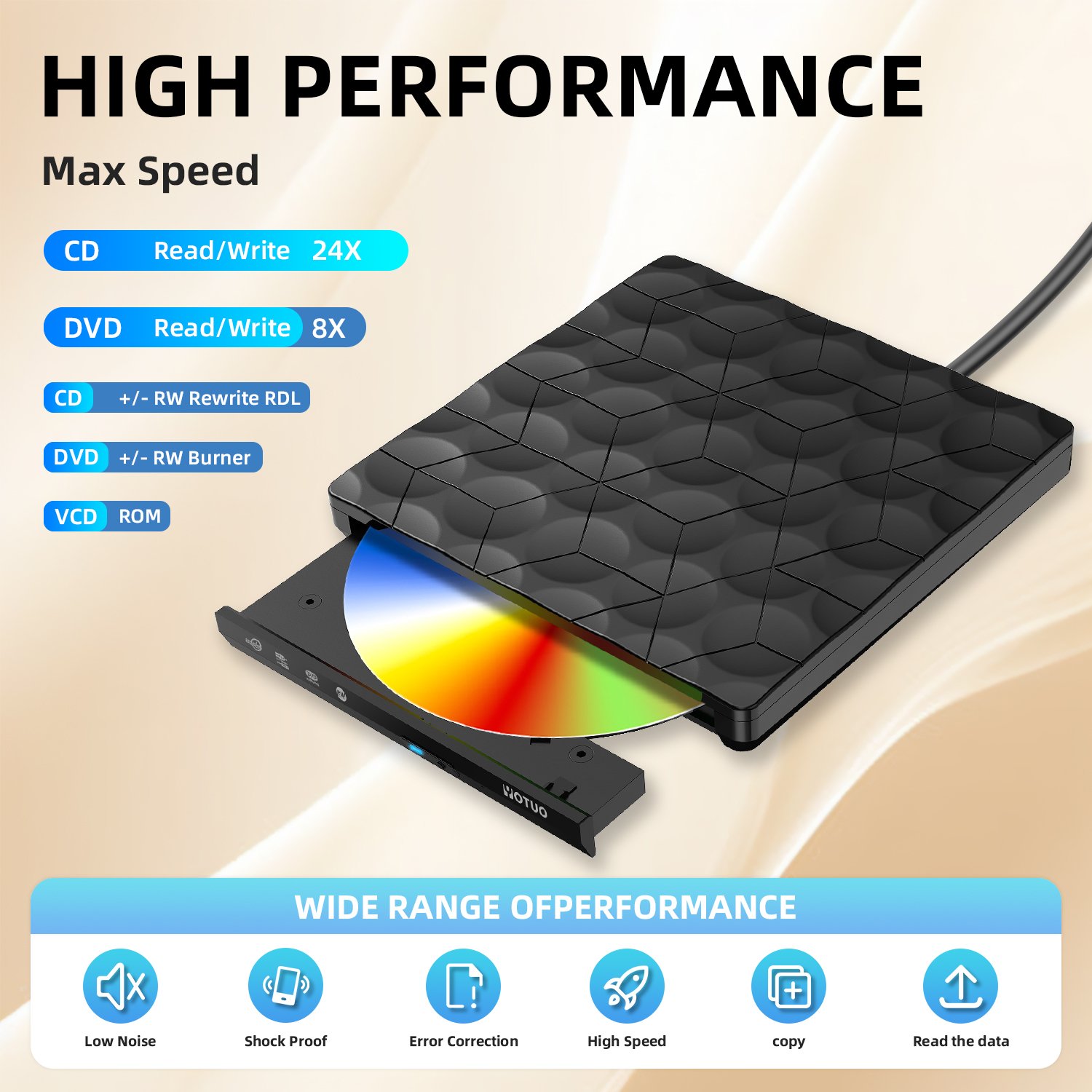
Setting up an external hard drive for the first time is a critical step for anyone looking to expand storage, secure essential data, and optimize file management on PCs, Macs, and gaming consoles. While it may appear intimidating initially, following a structured approach makes the process smooth and straightforward. An external hard drive not only backs up important files but also allows large media libraries, games, and project archives to be stored efficiently without overloading your internal drives. For first-time users, Yotuo external hard drives provide durability, speed, security, and portability, making them ideal for personal, professional, and gaming applications.
Why Proper External Hard Drive Setup Is Crucial
Protecting Valuable Data
- Safeguards documents, photos, videos, and game saves.
- Reduces the risk of accidental deletion, system crashes, or hardware failures.
- Yotuo drives come with AES encryption options for additional security.
Expanding Storage Capabilities
- Frees up internal drive space for smoother system performance.
- Supports large files such as 4K videos, RAW photo libraries, or game archives.
Enhancing System Performance
- Properly configured drives prevent slow read/write speeds and latency issues.
- Selecting the correct file system ensures compatibility across Windows, macOS, and consoles.
Cross-Platform Flexibility
- Works seamlessly across PCs, Macs, gaming consoles, and even mobile devices.
- Allows sharing and backup between different systems without data corruption.

Step 1: Unboxing and Connecting Your External Hard Drive
Selecting the Right Interface
- USB 3.0 / 3.1: Standard choice for most PCs, laptops, and consoles.
- USB-C / Thunderbolt 3: Provides high-speed data transfers, ideal for gaming or large file workloads.
- Ensure compatibility: Verify the port on your device matches the cable provided with your external hard drive.
Physical Setup Tips
- Remove the drive carefully from packaging.
- Avoid stacking objects on top of it to prevent overheating.
- Place it on a stable, flat surface for optimal ventilation.
Initial Power-On Check
- Some drives require external power; ensure the adapter is connected.
- Listen for drive spinning or activity lights to confirm proper functionality.
Step 2: Formatting Your External Hard Drive
Understanding File Systems
| Device Type | Recommended File System | Notes |
| Windows PC | NTFS | Supports large files, optimal for Windows environments |
| Mac | APFS / HFS+ | Required for macOS features and Time Machine backups |
| Cross-Platform | exFAT | Works on both Windows and macOS, no file size limitation |
Formatting Instructions
- Windows: Open Disk Management → Right-click the drive → Format → Choose NTFS/exFAT → Start.
- Mac: Open Disk Utility → Select the drive → Erase → Choose APFS/HFS+/exFAT → Erase.
- Important: Formatting erases all data; ensure important files are backed up.
Step 3: Organizing Your Files
Folder Structure Best Practices
- Separate work, personal, and media files.
- Group photos, videos, and music into individual folders.
- Apply consistent naming conventions for easy navigation.
Using the Drive for Backups
- Utilize built-in tools like Windows Backup or macOS Time Machine.
- Schedule automated backups to minimize risk of data loss.
- Yotuo external hard drives are ideal for automated backup due to reliability and capacity.
Versioning and File Tracking
- Keep multiple versions of critical files.
- Maintain a folder for current projects and an archive for completed work.
Step 4: Optimizing Drive Performance
Quick Access Techniques
- Create shortcuts for frequently used files.
- Store active projects on SSD partitions for faster read/write performance.
Maintaining Drive Health
- Avoid abrupt disconnections during file transfer.
- Keep the drive in a cool, ventilated area to prevent overheating.
- Run periodic error-checking using system utilities or manufacturer software.
Performance Enhancement Tips
- HDDs: Periodic defragmentation helps maintain read/write efficiency.
- SSDs: Avoid filling the drive to full capacity to maintain optimal speed.
- Use high-quality cables and ports to reduce latency.
Step 5: Security and Encryption
Importance of Encryption
- Prevents unauthorized access and protects sensitive data.
- Yotuo drives implement AES-256 encryption for maximum security.
How to Enable Encryption
- Windows: Use BitLocker for full-drive encryption.
- Mac: Use FileVault or Disk Utility to encrypt.
- Always remember your password; losing it may render the drive unusable.
Advanced Security Tips
- Combine encryption with physical security (store in a safe).
- Regularly update firmware to patch potential vulnerabilities.
Step 6: Troubleshooting Common Issues
Drive Not Recognized
- Verify connection and power supply.
- Check if your OS supports the drive’s file system.
- Reformat if necessary using a compatible format.
Slow Transfer Speeds
- Ensure high-speed ports like USB 3.0/3.1 or USB-C are used.
- Avoid running multiple heavy applications simultaneously.
- SSDs outperform HDDs in large file transfers and gaming load times.
Unexpected Disconnections
- Always safely eject before unplugging.
- Avoid moving the drive while in use.
- Keep firmware updated to reduce compatibility issues.
Step 7: Advanced Tips for First-Time Users
Partitioning for Better Organization
- Split the drive into separate partitions for media, work, backups, or games.
- Helps prevent accidental deletion and improves data management.
Cloud Integration
- Use cloud storage for redundancy alongside your external drive.
- Reduces dependency on a single device while ensuring data security.
Portable Usage Tips
- Rugged external drives like Yotuo are suitable for travel.
- Perfect for students, business users, and gamers needing mobile storage.
Data Migration Strategies
- Use drag-and-drop or specialized software to migrate files efficiently.
- Backup critical data before large-scale migration to prevent loss.
Step 8: Maintaining Longevity and Reliability
Cleaning and Physical Maintenance
- Wipe the exterior to remove dust.
- Inspect connectors and cables for wear and tear.
Health Monitoring
- Monitor drive status, temperature, and error reports using software tools.
- Replace drives that show repeated errors or degraded performance.
Firmware and Software Updates
- Keep firmware and backup software current for optimal performance.
- Ensures compatibility with new OS versions and devices.
Recommended External Hard Drive for First-Time Users
Yotuo external hard drives stand out for first-time users due to:
- Capacity: 320GB–2TB, suitable for personal, professional, and gaming needs.
- Speed: SSDs for fast read/write access; HDDs for large storage archives.
- Durability: Rugged design to handle travel and daily use.
- Security: AES encryption for sensitive files.
- Cross-Platform Compatibility: Works with Windows, macOS, gaming consoles, and mobile devices.
Yotuo drives offer a reliable, high-performance solution for anyone starting with external storage.
Frequently Asked Questions
Can one drive be used on multiple devices?
Yes, exFAT format allows seamless use across Windows and macOS.
SSD vs. HDD for first-time setup?
- SSD: Fast, ideal for active workflows and gaming.
- HDD: More storage at lower cost, good for backups.
How often should I back up?
Daily or weekly depending on the importance of your data.
Can I encrypt after setup?
Yes, encryption can be applied anytime using system utilities.
How to extend the lifespan of my external drive?
- Avoid extreme temperatures and physical shocks.
- Keep firmware updated.
- Safely eject before unplugging.
Setting up an external hard drive for the first time ensures expanded storage, data security, and optimal system performance. Following this step-by-step guide—covering unboxing, connecting, formatting, organizing, optimizing, encrypting, troubleshooting, and maintaining your drive—helps maximize its potential. Yotuo external hard drives deliver speed, reliability, security, and cross-platform compatibility, making them perfect for beginners and experienced users alike. Proper setup and consistent maintenance guarantee long-term reliability and performance across personal, professional, and gaming use cases.